

Organization
Manage your organization's teams, members, and settings. Access from the sidebar by clicking Organization.
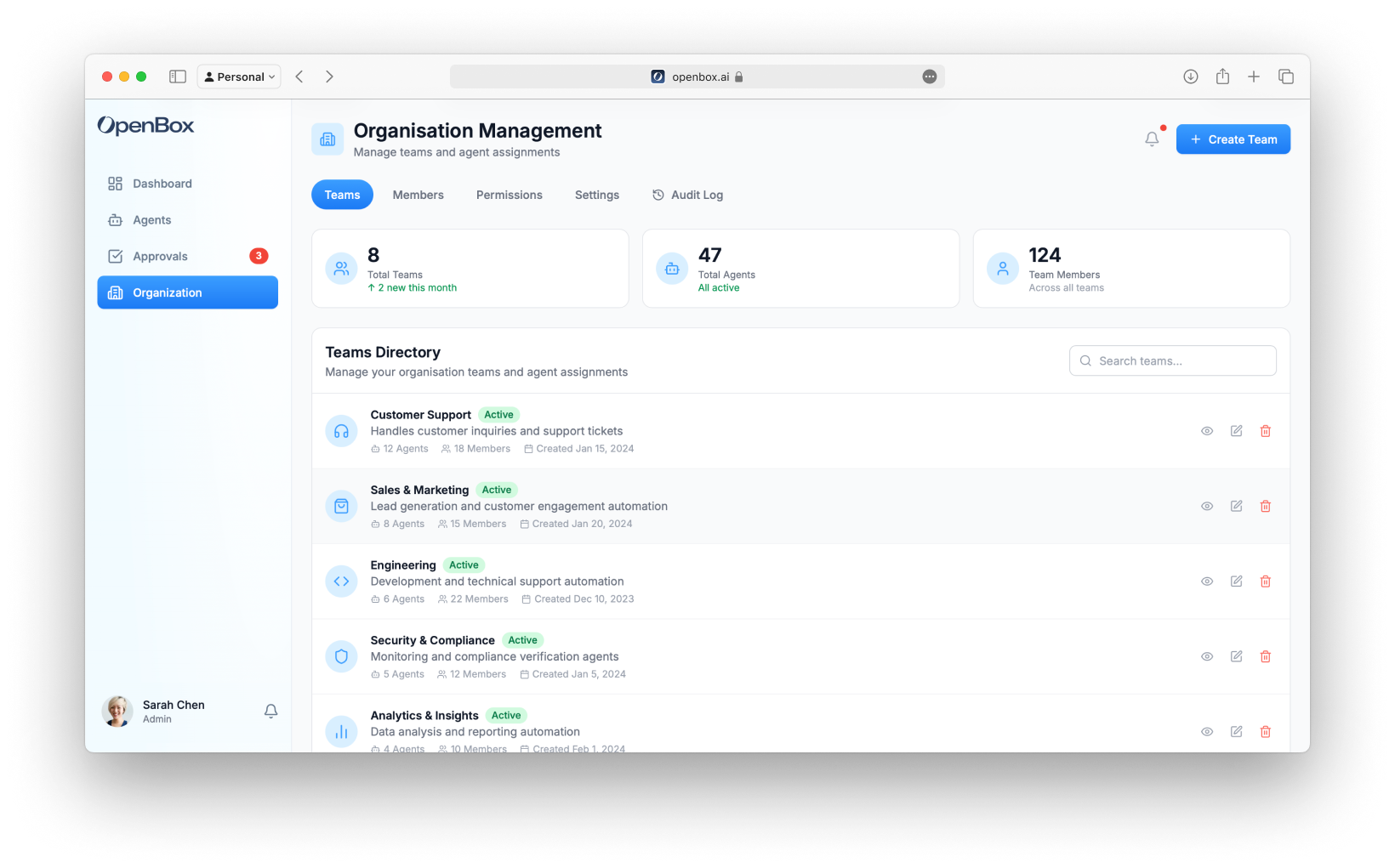
Teams
Organize agents and members into teams for access control. See Teams for the full reference.
Members
Adding Members
- Go to Organization → Members
- Click Create User
- Enter user details and select a role
- To assign a team, edit the user after creation and select a team
note
Team assignment is only available for non-administrator roles (e.g., Developer, Viewer). Organization-level admins have access across all teams.
Permissions
Configure what each role can access and modify within the organization. Go to Organization → Permissions.
| Role | Permissions |
|---|---|
| Admin | Can manage all teams, agents, policies, and organization settings |
| Developer | Can create and manage agents within assigned teams. Cannot modify organization settings |
| Viewer | Can view agents, logs, and reports. Cannot make any modifications |
Settings
General
- Organization name and logo
- Default timezone
- Notification preferences
Audit Log
View all organization activity:
| Event Type | Examples |
|---|---|
| Authentication | Login, logout, failed attempts |
| Members | Invites, role changes, removals |
| Agents | Created, updated, deleted |
| Policies | Created, updated, deleted |
| Approvals | Approved, rejected, expired |
| Settings | Configuration changes |
Filtering
Filter audit log by:
- Date range
- Event type
- User
- Agent
- Team
See Audit Log for details.
Next Steps
- View Audit Log - See detailed activity history and export for compliance
- Compliance - Use audit trails and attestation evidence for auditors